Seamless Texture Generator from a Photo
Free, in your browser, no sign-up
Drop a photo of a surface and get a texture that repeats without visible seams. Compare three results side by side, check them tiled, and download the one you like.
Try a samplephotos that do not tile yet
Seam fix
The defaults suit most photos. Change a slider and the three results are remade.
Made on your device. Your photo is not uploaded.
Download
Seam mask. Pink marks the pixels the seam fix changed. Further in, only Even out colour and Remove lighting apply.
How it works
Three results, because no single fix suits every photo
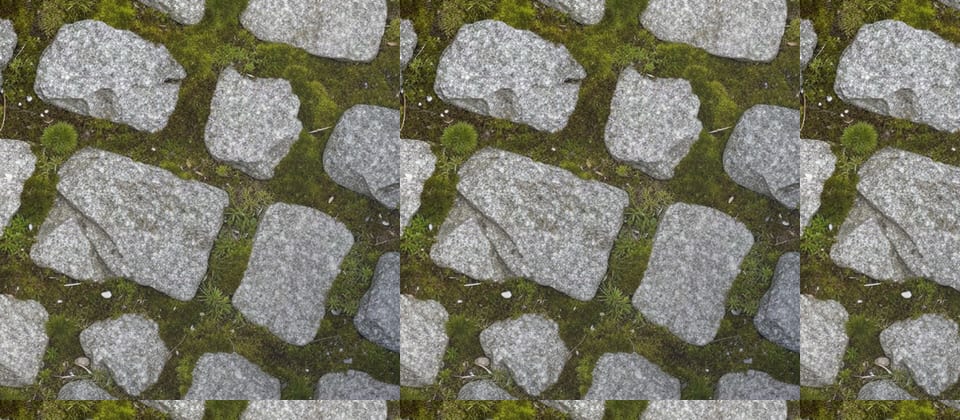
1 · See the seams
Your photo is shown repeated, so the hard lines where the edges meet are easy to spot.
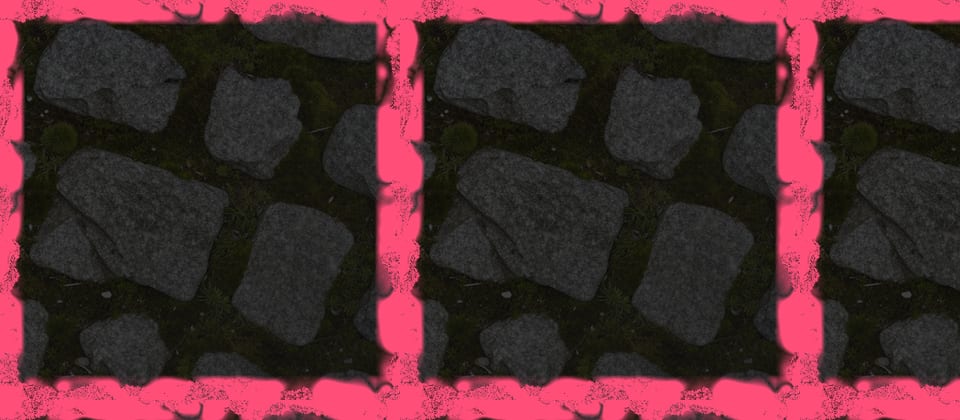
2 · Only the edges change
The tool blends a band around the edges and evens out colour. The mask shows where the seams were blended.
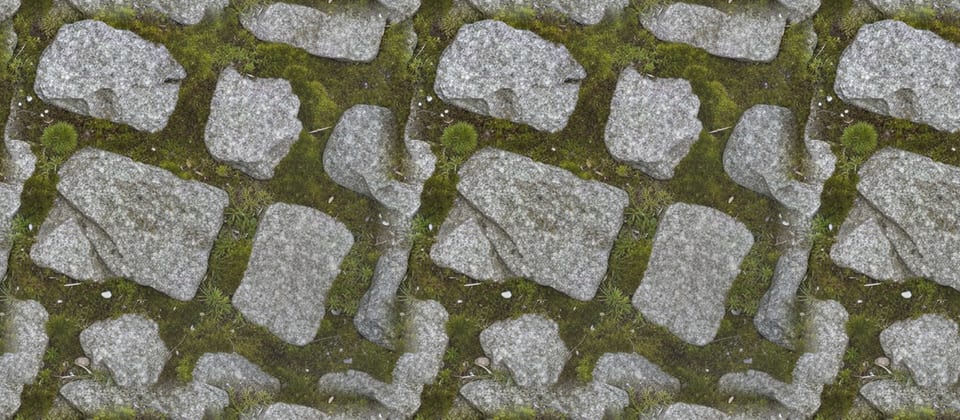
3 · Pick and download
Choose the result that looks best tiled, then download it or send it on to make maps.
How to make a seamless texture from a photo
- Choose your photo, or drop or paste it anywhere on the page. PNG, JPG and WebP work; large images are scaled to 2048 px on the long side.
- Look at the Tiled 3×3 view: the photo repeated nine times. Hard lines show where its edges do not meet.
- Compare Result A, B and C below the preview. Each crop has the meeting point of four copies in the middle, so the seams are easy to judge. Result A has the best score.
- If one side of the photo is brighter, raise Even out colour, or switch on Remove lighting. Widen Seam width if the band still shows.
- Download the result you like as PNG or JPG, in the size of your photo, or press Make normal and PBR maps from it to get the full material on the home page.
How the edges are blended
Each result shifts a copy of the photo by half its width and height. In that copy the left edge continues into the right edge and the top into the bottom, because those pixels were neighbours in the middle of your photo. Only a band along the edges, as wide as Seam width, is blended towards the copy; further in, the seam fix leaves the photo as it was, which the Seam mask view shows. Even out colour and Remove lighting are separate: they adjust the whole photo slightly, and you can set them to zero.
The three results blend that band differently. Keeps more detail switches the fine detail along the line where the two images already match best, so stones and cracks are not doubled. Balanced blends fine detail over a short distance. Softest cross-fades everything over the whole band. The score adds up how invisible the seam is and how much detail survives near the edges.
Blending hides the edge; it cannot remove one-off features or uneven light that repeats across the tiles. Even out colour and Remove lighting reduce the second, and the first is down to the photo you choose.
Photos that tile well
The best sources are evenly lit, straight-on shots of surfaces that repeat on their own: gravel, sand, grass, bark, plaster, concrete, fabric, carpet, leather. Shoot in shade or on an overcast day so there are no strong shadows, and keep the camera square to the surface.
Photos with one standout feature, like a single crack, a knot in the wood or a logo, tile badly: the feature repeats in a grid. Crop it out first, or paint it out in an image editor. Bricks and tiles work best when the photo holds whole rows, so the pattern lines up after blending.
Seamless texture vs. AI texture set
The free seamless texture is made with image maths in your browser, and the normal, height, roughness and occlusion maps you can make from it on the home page are too. An AI texture set is different: an AI model reads the material in your photo and returns base colour, normal, roughness, metalness and height. AI sets are paid (see the pricing page), need an account, and come back as the model made them.
Questions
Is the seamless texture generator free?
Yes. It runs in your browser with no sign-up and no watermark, and downloads are in the size of your photo, up to 2048 px on the long side.
Will any photo tile after the seam fix?
No. It removes the hard line at the edges, but uneven lighting and one-off details still repeat visibly. An evenly lit, straight-on photo of a repeating surface gives the cleanest result; Even out colour and Remove lighting help with the rest.
Why three results?
No single blend suits every photo. Keeps more detail suits stones, gravel and bark; Softest suits smooth surfaces like plaster or sky. Compare them tiled and pick the one where you cannot find the seam.
Will the middle of my photo change?
The seam fix only changes a band along the edges, as wide as Seam width. Seam mask shows exactly which pixels changed. Even out colour and Remove lighting adjust the whole photo slightly, and you can set them to zero.
Do I need an account, and is my photo uploaded?
No to both. The seamless texture is made in your browser and downloads without signing in. Only an AI texture set, if you ask for one, needs an account and sends a copy to the AI provider.
Can I make normal and roughness maps from the result?
Yes. Make normal and PBR maps from it opens the normal map tool on the home page with your seamless texture already loaded, and nothing is uploaded on the way.
Can it make a seamless texture from a text prompt?
No. This tool starts from your own photo or texture image. The procedural texture generator draws tileable materials from sliders, and an AI texture set can start from a written description.